YEAR 9 DIGITAL TECHNOLOGY
  • Unit A - Computer Science
    • Light Bot
    • Basic Programming
    • If Statements
    • Programming Assessment
  • Unit B - Digital Media
    • Pixel Art
    • Pixel Animation
    • Photo editing
  • Bonus Learning
    • 3D Modelling
    • Video Editing
    • Introduction to Python
  • Freyberg Digital
  • New Curriculum
    • Programming >
      • Sequencing & Pattern Recognition
      • The OS, Files, and Folders
      • Basics & Input/Output
      • If Statements
      • Advanced Programming
      • Mini Projects
    • Digital Media >
      • Pixel Art
      • Analyse Pixel Art
      • Investigate Popular Media
    • Design Make Innovate >
      • Design
      • Make
      • Innovate

Pixel Art - The Canvas

Learning Intention: We are learning what pixel art is and why the size of the canvas (the grid) matters.
Success Criteria:
  • I can explain that pixel art is made by carefully placing individual coloured squares (pixels).
  • I can choose a small canvas size that suits my purpose.
  • I can create a simple static pixel art image on a small grid.
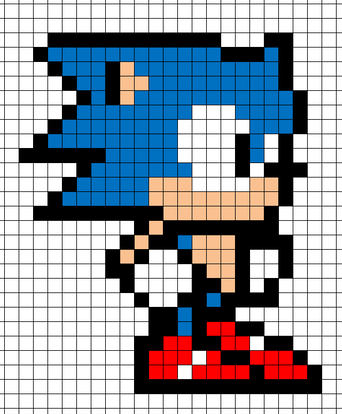
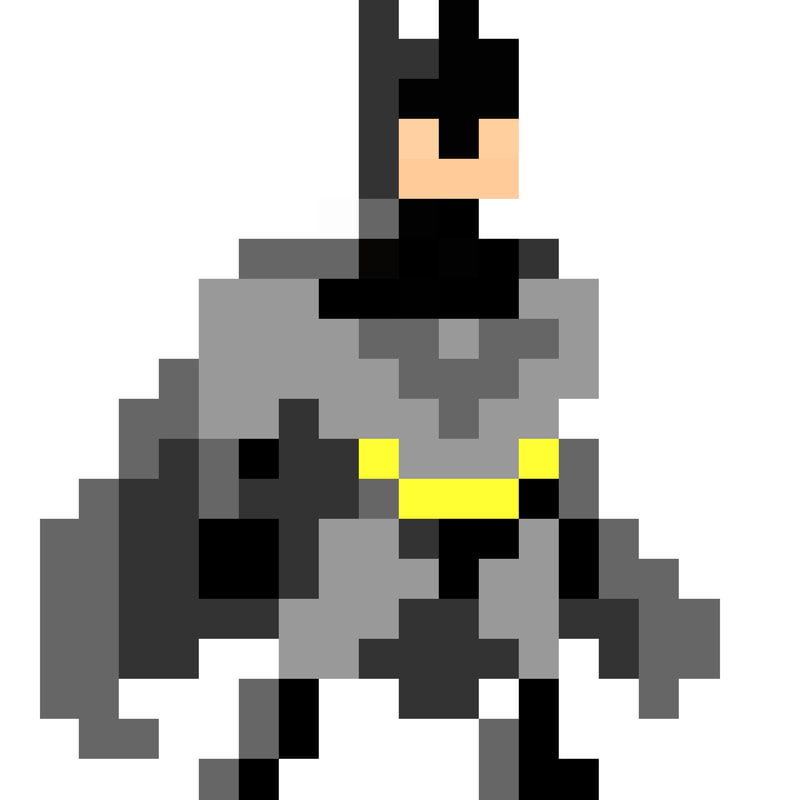
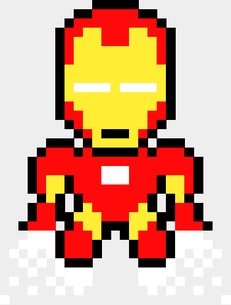
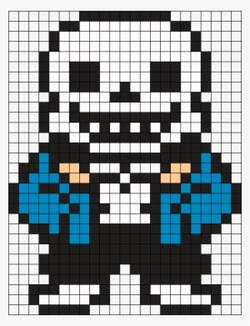
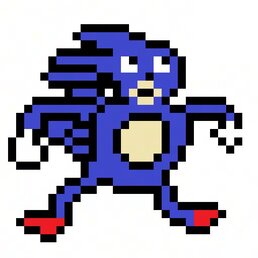
Pixel art is kind of like building with bricks, rather than painting with a brush. Unlike normal drawing programs (like Paint), we don’t freehand big smooth shapes, rather we work on a small grid and decide the colour of each square one by one.
​
​
Why canvas size matters
  • Too big (e.g. 500 × 500) and you lose the pixel look, it becomes normal digital painting.
  • Good starting sizes for beginners:
    • 16 × 16 (tiny icons)
    • 32 × 32 (simple characters or sprites)
    • 64 × 64 (more detailed but still manageable)
      ​
Activity:
1) Open PixilArt
2) Set your canvas to 32x32 pixels
3) Create a simple icon or character (a face, animal, food item, or game item)
Picture
Picture

Using Layers

Learning Intention: We are learning how to use layers to keep our pixel art organised and easy to edit.
Success Criteria:
  • I can create and name different layers.
  • I can move, hide, and lock layers.
  • I can explain why using layers is better than drawing everything on one layer.

Layers are like clear sheets of paper stacked on top of each other. You can draw different parts of your picture on different layers so you can change one part without messing up the others.
Useful layer habits:
  • Give every layer a clear name that describes what is on it (e.g. background, person, sunglasses).
  • Lock layers that you don’t want to accidentally draw on.
  • Work from the bottom up: background > main picture/shape > details

Activity
Take your image from the last activity (or start a new 32 × 32 character).
Rebuild or improve it using at least three named layers like the fish example on the right.
Picture
Picture

Frames (for animating characters)

Learning Intention: We are learning how to create simple animation using frames.
Success Criteria:
  • I can create multiple frames.
  • I can make a short looping animation.
  • I can adjust the speed of the animation.

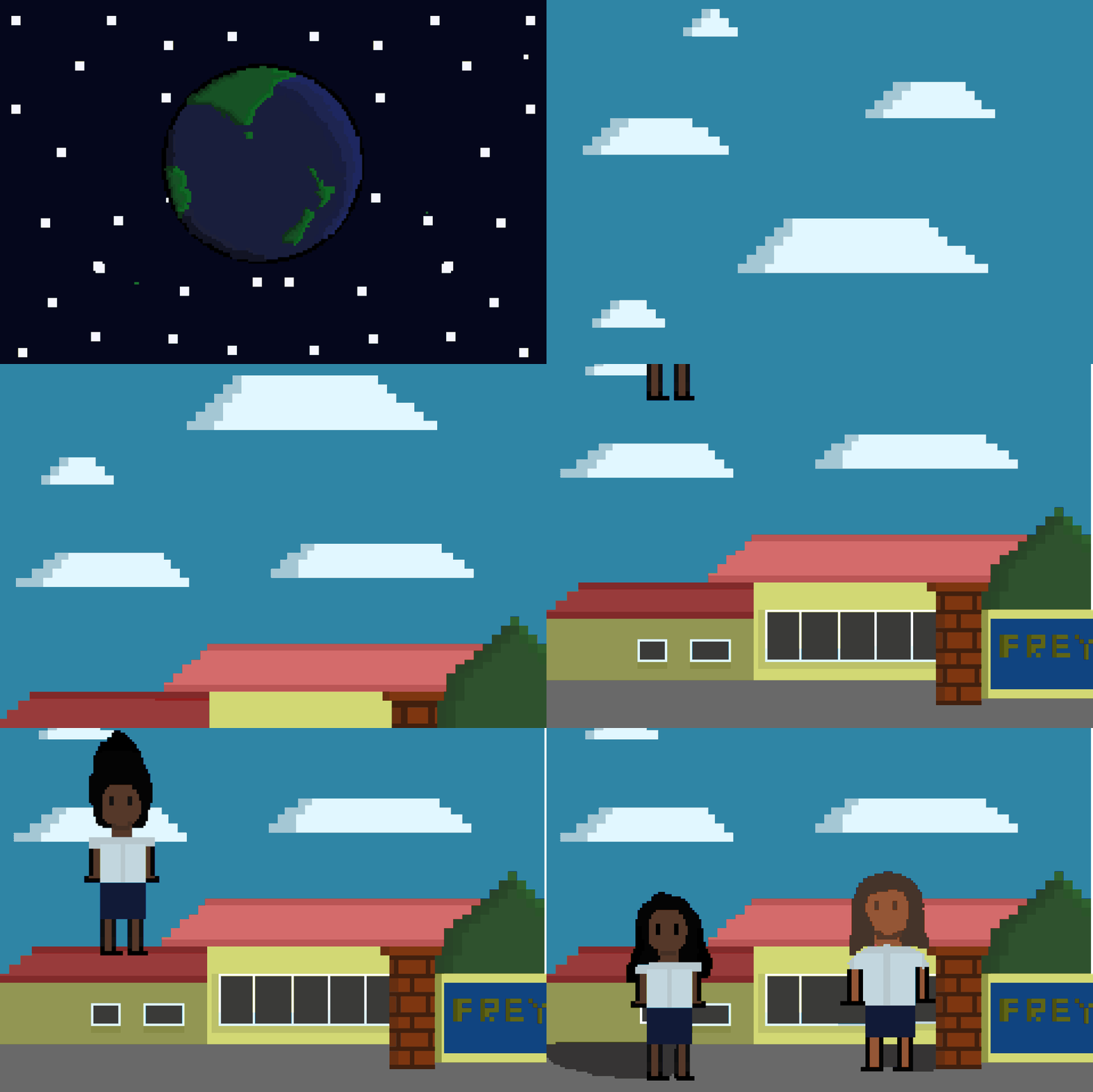
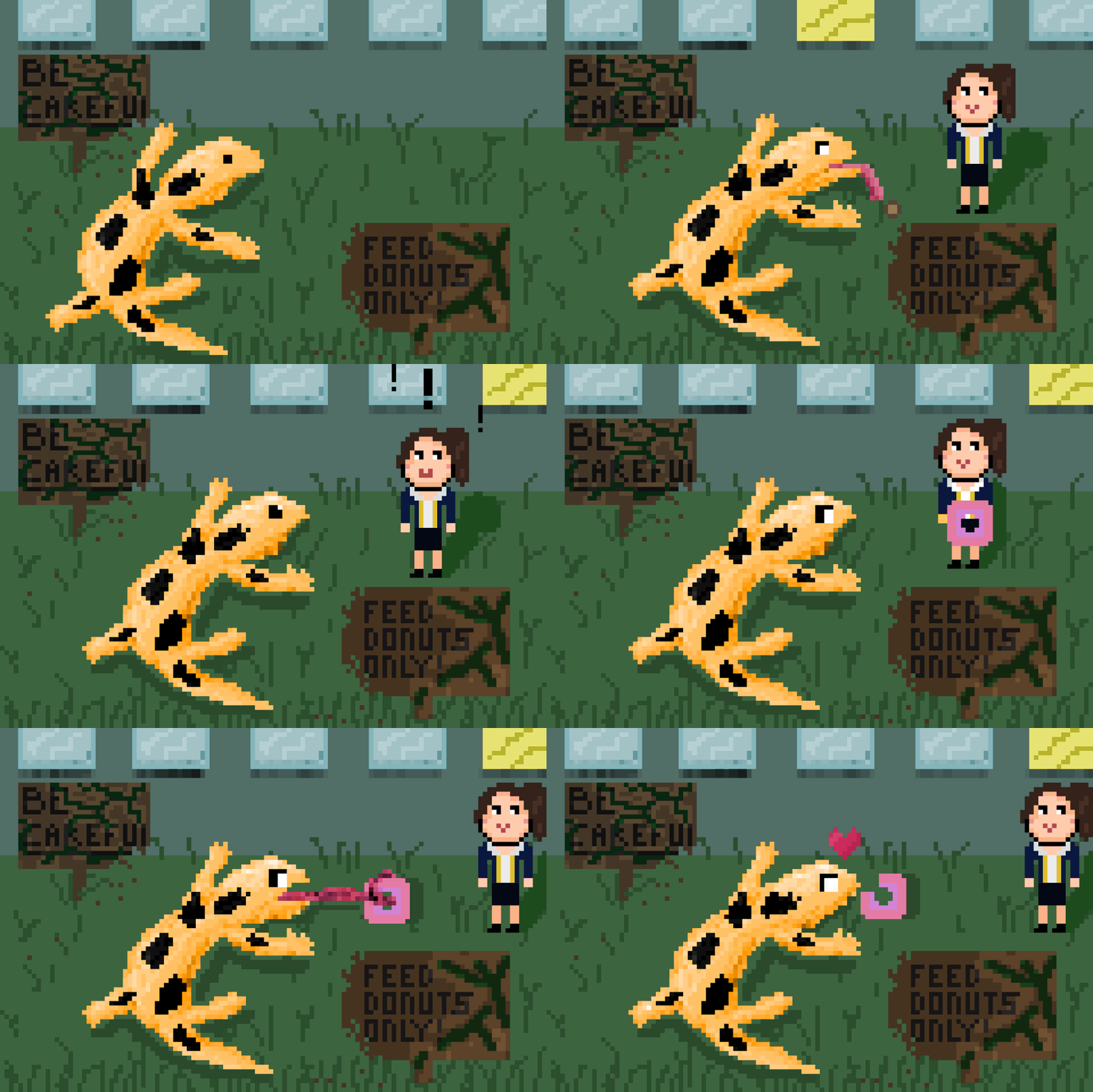
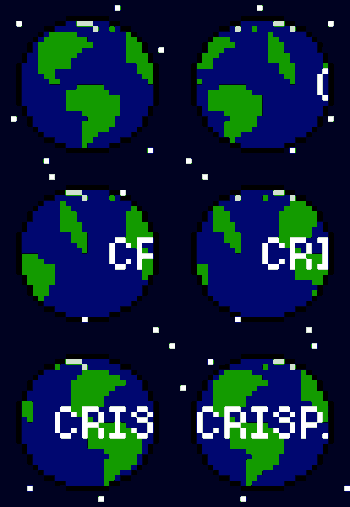
A frame is one still (non-moving) picture. When you show several frames quickly one after another, it creates the illusion of movement (animation). In pixel art we usually make very short animations (4 - 8 frames) that loop forever, such as:
  • a character blinking or breathing
  • a coin spinning
  • a flag waving
Tips:
  • Keep changes small between frames, big changes look jumpy.
  • Test the animation often and adjust the speed.​
Picture
Picture

​​
​Activity
Create a simple looping animation of 4 to 8 frames (for example, a bouncing ball, a blinking eye, or a character waving).

Powered by Create your own unique website with customizable templates.
  • Unit A - Computer Science
    • Light Bot
    • Basic Programming
    • If Statements
    • Programming Assessment
  • Unit B - Digital Media
    • Pixel Art
    • Pixel Animation
    • Photo editing
  • Bonus Learning
    • 3D Modelling
    • Video Editing
    • Introduction to Python
  • Freyberg Digital
  • New Curriculum
    • Programming >
      • Sequencing & Pattern Recognition
      • The OS, Files, and Folders
      • Basics & Input/Output
      • If Statements
      • Advanced Programming
      • Mini Projects
    • Digital Media >
      • Pixel Art
      • Analyse Pixel Art
      • Investigate Popular Media
    • Design Make Innovate >
      • Design
      • Make
      • Innovate