Animating our Pixel Art
In this lesson we're going to draw a basic emoji and then animate it.

|
1) Open Piskelapp
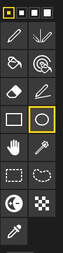
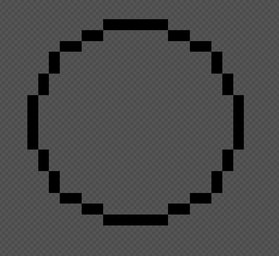
2) Draw a circle using the circle tool |
|
|
|
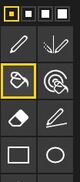
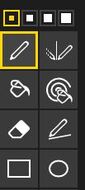
3) Select a yellow/orange colour and use the bucket tool to fill in the circle. Then use the pen tool and draw on the face.
|
|
|

|
|
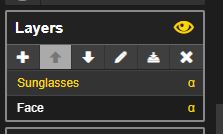
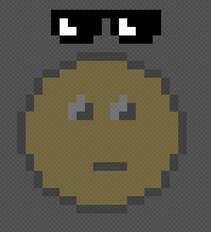
4) In the layer area on the right, rename your face layer. Create another layer and call it sunglasses. Draw your sunglasses in this layer.
|
|
|
|
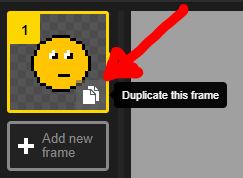
5) Duplicate your current image to create a second frame as seen in the picture.
|
|
|
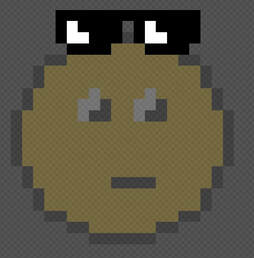
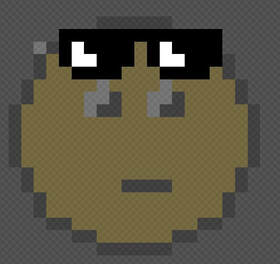
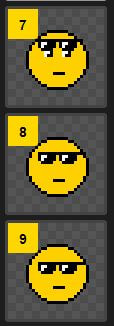
6) Use the hand tool to move the sunglasses down the face, then duplicate the second frame like we did above. Keep duplicating and shifting the sunglasses down on each new frame.
|
|
|
|
7) You can make extra changes piece by piece in each frame to make extra things happen, like the smile.
|

|
|
Animation assessment
Draw and animate a piece of life at Freyberg. This might be the athletics day, lining up for school lunches, working in class or something else of your choosing. Be creative! Use the examples on the Pixel Art page as inspiration if you like.
