If Statements
|
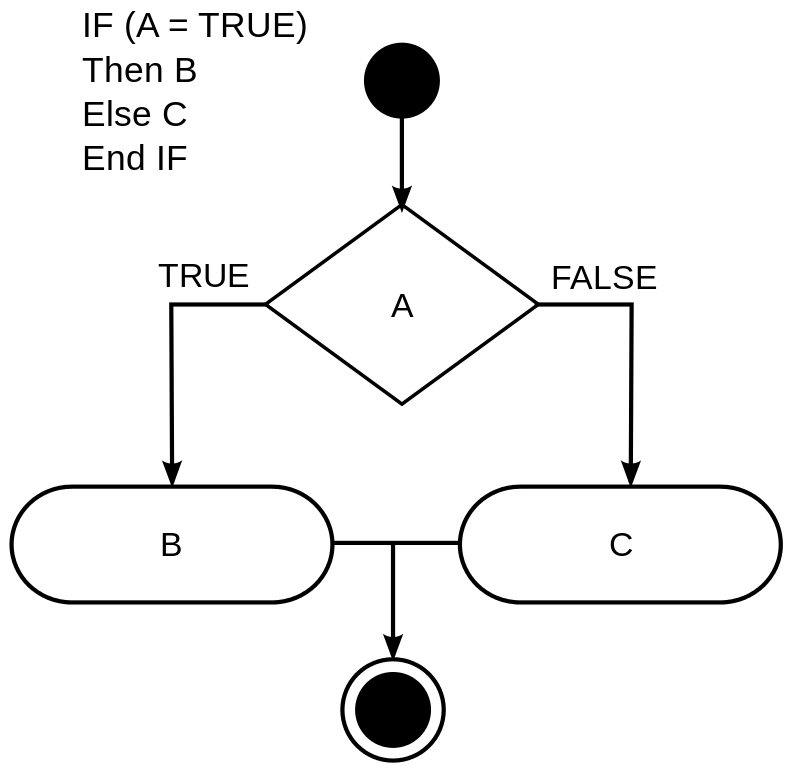
An If statement in programming, allows a computer to choose between two different answers
For example If I was to ask you for a number above 7 and you answered 8 it would say "Correct!" But if you said 5 it would answer "Incorrect!" We use these if statements in order to do lots of complicated cool things with computers and video games |
|
Getting Started.
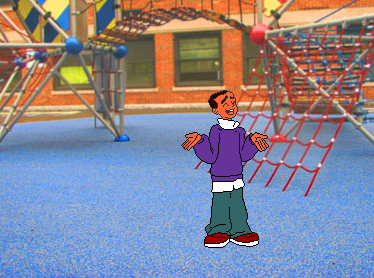
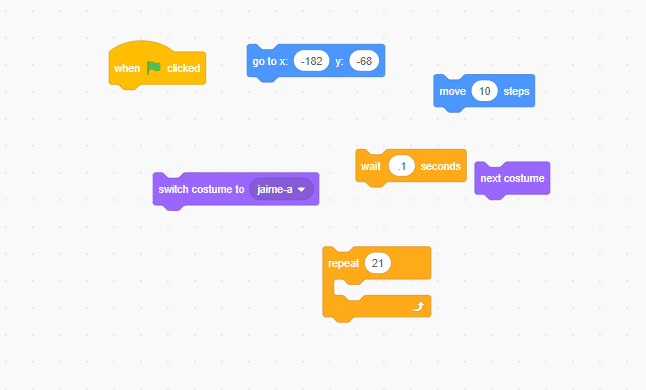
Create a new project and remove the cat. Insert Jamie and make him walk to the centre by using the code provided
|
|
Asking for your name.
|
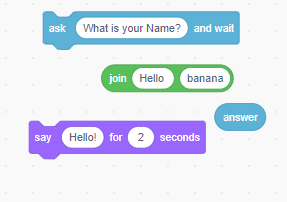
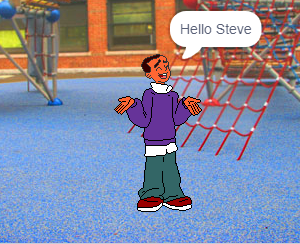
Task: Make Jamie ask for your name then greet you
Add the code on the right to the bottom of your walking code Extras: Work out how to make Jamie insult you as well. |
|
|
If Statement
|
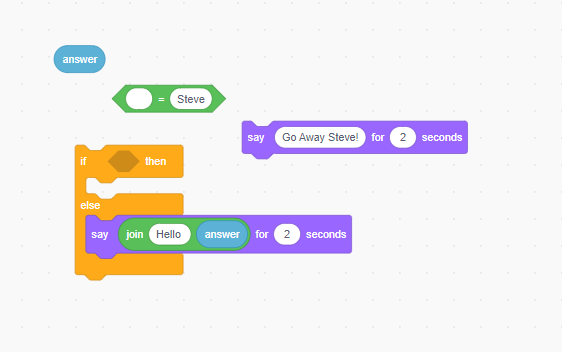
Jamie doesn't like Steve,
If someone enters "Steve" he should tell them to go away. Add the following code to make that happen. |
|
Greater than or less than
|
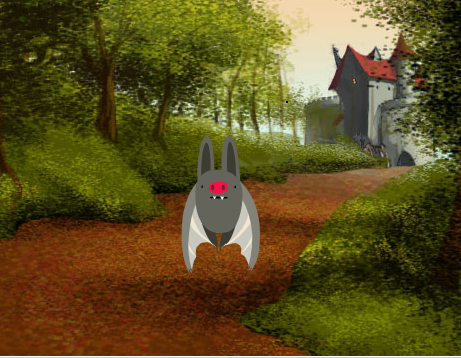
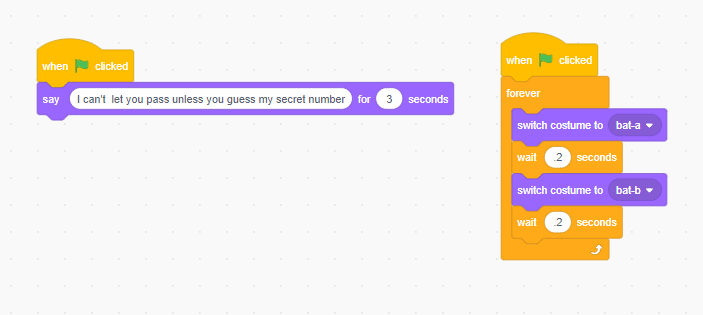
Create the bat in front of a castle and add the following code
|
|
|
Notice that the bat continually flies...
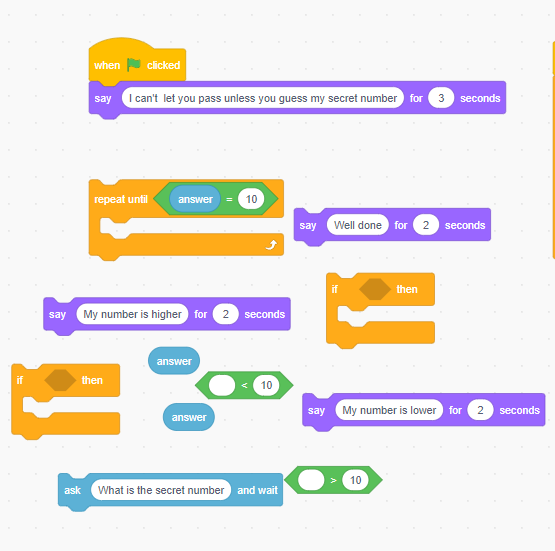
Now we want to make it so that you cannot get past the bat unless you guess his secret number. Join together this code correctly in order to do so. |
|
Activity - Make a Game
Final Challenges
Below are a series of different challenges, try to complete them using the skills that you've learnt across this unit.
- Whenever you press the B key, the sprite gets a little bigger. Whenever you press the S key, the sprite gets a little smaller.
- Whenever the sprite is in the top 25% of the screen, it says “I like it up here.”
- When the sprite touches something blue, it says "Daba dee daba dai" and spins around clockwise. When the sprite touches something red, it says "I see red!" and spins around anti-clockwise.
- Whenever two sprites collide, one of them says: “Excuse me.”
- Whenever the cat sprite gets near the dog sprite, the cat turns and runs a distance away from the dog in a random direction.
- Whenever you click on the background, a flower appears at that spot. After 5 seconds the flower disappears.
- Whenever you click on a sprite, all other sprites do a dance.
- When a score variable reaches 10, the scene (background) changes.
- The sprite falls as if by gravity, but stops when hits the green ground.
- The sprite follows the mouse-pointer, but it never gets too close to the mouse-pointer.
- Make the sprite follow an oval (like a race track)
- Each time you click on the sprite, it keeps track of the number of clicks, and displays the count on the screen.
- Design a virtual pet sprite that needs to be fed, played with, and put to sleep. The pet's mood and energy level change based on how it's cared for. Users can click on different icons to interact with the pet.
